MyVyBZ Support
How can we help? Search for an answer or send us a support request.
How to buy a Listing at MyVyBZ
How to purchase a listing using the MyVyBZ Payment Kiosk inWorld
First, head over to the MyVyBZ location using the following link:
https://maps.secondlife.com/secondlife/Moonie/222/59/2725
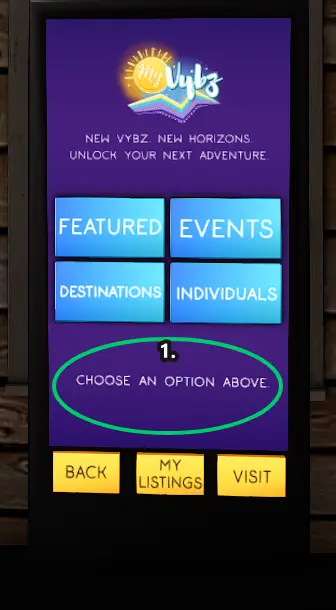
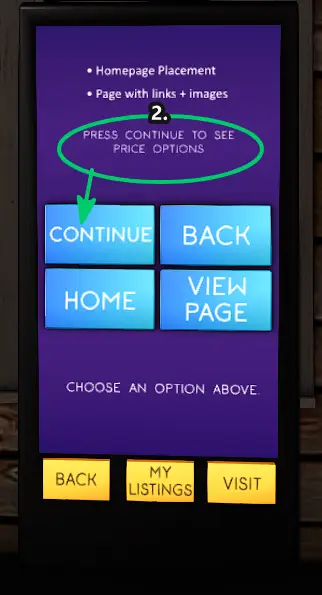
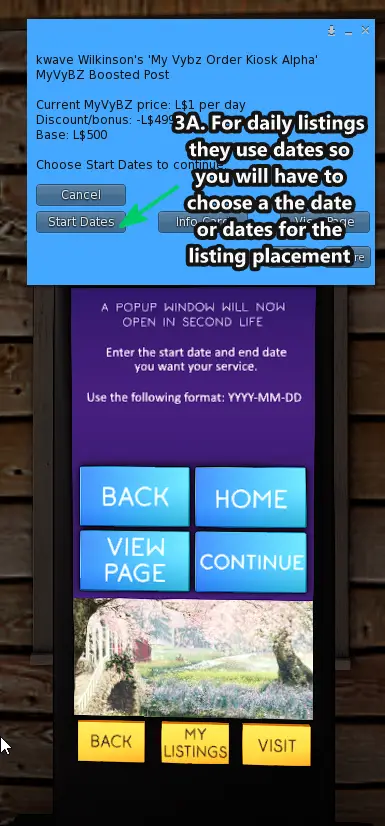
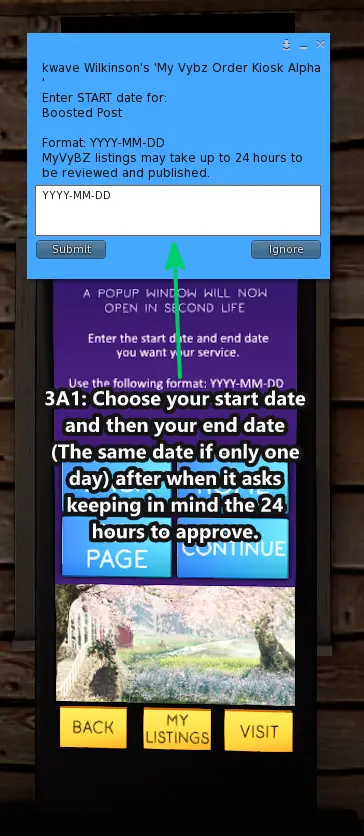
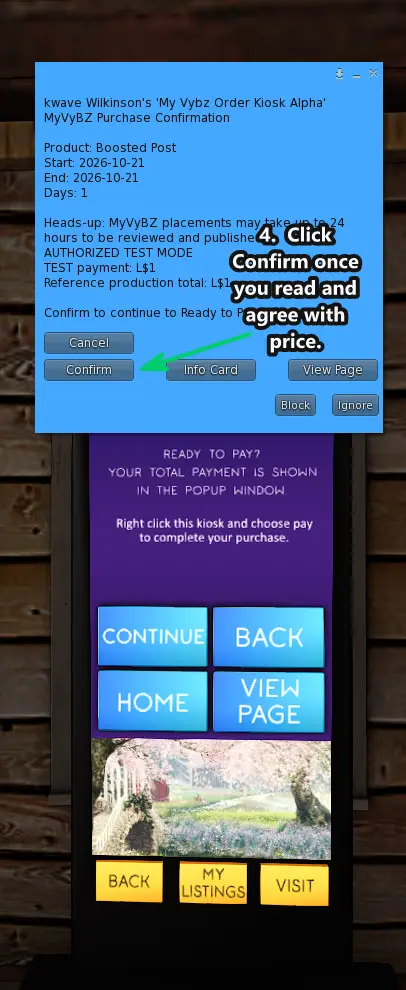
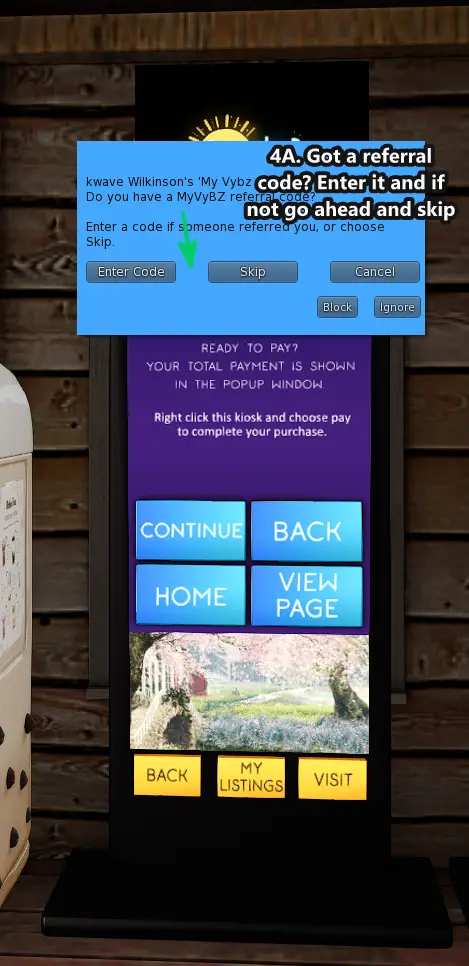
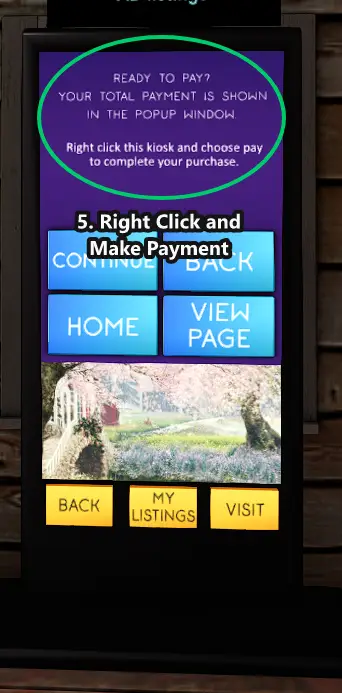
- Once you arrive, go to one of the Payment Kiosks and choose the listing or ad option you would like to buy, or select an option to learn more.There are several categories, so here is a quick explanation of what goes where:
- FEATURED contains featured items that do not belong to a guide category. This includes:
- Sponsor Listing (top in the premium carousel)
- Ticker Ad (top of page)
- Boosted Post (bottom of home page)
- Sidebar Ad (sidebar or lower on mobile/scroll layout)
- Other featured items that belong to one of the guide areas are located in their matching category menus.
- EVENTS is where you purchase a Featured Event or Event Guide Listing.
- DESTINATIONS is where you purchase a Featured Destination or Destination Guide Listing.
- INDIVIDUALS is where you purchase a Featured Individual/Group Listing or an Individual/Group Guide Listing.
- FEATURED contains featured items that do not belong to a guide category. This includes:
- Select the product you want, review the details, and Click CONTINUE leading you through the blue menu popups when it opens.
- If the product requires options such as term length, dates, or other selections, choose those when prompted.
- When you are ready, confirm the purchase in the kiosk. If a referral code applies, enter it when prompted.
- After the kiosk says your purchase is ready, right-click the kiosk and choose Pay, then pay the exact Linden Dollar amount shown.
- Once payment is received, you will get a blue menu popup with an intake link to open and fill out for your listing. If needed, you can then manage it later from My Listings. Keep in mind a submission takes 24 hours ahead to allow time to review and approve your intake. So if this is a listing upcoming within that time please be sure to get the intake form done as soon as possible.
Still need help?
If this article did not solve it, send us the details and we’ll take a look.
Was this helpful?
Sync this browser from your MyVyBZ HUD or Info Kiosk to rate this article.